Overview
What Hush AI is, how to install it and how it works, on one page.
Keyboards, fans, barking dogs, traffic, a busy café, a crying baby. Hush AI removes them from your voice while you talk, and from recordings you already have.
- On calls, apps hear you through a new microphone called Hush AI Microphone. Choose it once in Zoom, Google Meet, Microsoft Teams, Slack, Discord, Webex or OBS.
- In Studio, drop an audio or video file, or record yourself, and save a clean WAV.
- With Google Calendar, Hush turns itself on a minute before each call and pops up with a Join button. No Google sign-in.
- With Live Translate (Preview), you talk with anyone both ways: they hear you in their language, and you read (or hear) them in yours, through Google's Gemini Live Translate and your own API key.
- With Hush AI Speaker, the other side's noisy room is cleaned before you hear it.
No account. No subscription. No minute limits. Noise cancellation never leaves your computer.
Why Hush AI#
| 🔒 On your computer | Noise cancellation and Studio run on your CPU. Hush sends no telemetry and has no servers. |
| 🪶 Light | The default engine, DeepFilterNet 3, needs one thread: about 7% of a laptop core offline, 11–13% live. Your laptop stays cool and quiet. |
| ⚡ Real time | 10–20 ms frames, about 60 ms before device buffers. |
| 🎙️ Works everywhere | One virtual microphone for every app, and Hush AI Speaker for what they say. |
| 🏝️ The notch | Hush sits at the top of your screen, wakes up in calls and opens when you point at it. Or keep the tray widget. Both can hide from screen sharing. |
| 🎚️ Two engines | DeepFilterNet 3 (light, the default) or NVIDIA Real-time RE-USE (most natural at high settings). Switch any time. |
| 📼 Studio | Clean up podcasts, voice notes, interviews and lectures. Drag and drop, compare before and after, save. |
| 📅 Meetings | Google Calendar through its private iCal address. Hush is ready before your call is. |
| 🌍 Live Translate | Preview. Both ways, in 70+ languages: they hear you in theirs, you read (or hear a voice-over of) them in yours. Ctrl+Alt+T in any call. The one feature that uses the cloud, and only while it is on. |
| 💬 Conversations | Every call kept as a conversation, grouped by meeting, with search, stars, filters and export. On your computer. |
| 🔓 Open source | Apache-2.0 app and engine. Read every line. |
Hush AI, Krisp and Adobe Podcast#
| Hush AI | Krisp | Adobe Podcast Enhance Speech | |
|---|---|---|---|
| Price | Free, no limits | 7-day free trial, then paid plans | Free with daily limits; more with a paid Adobe plan |
| Open source | Yes, Apache-2.0 | No | No |
| Account | None | Sign-up | Adobe account |
| Where your audio is processed | Your computer | Your computer (noise cancellation) | Adobe's servers: you upload the file |
| Live calls in any app | Yes | Yes | No |
| Clean up recordings | Yes, on your computer | – | Yes, in the browser |
From the vendors' public pages (krisp.ai/pricing, podcast.adobe.com), November 2026; – means we did not find it there. We have not measured Krisp's or Adobe's audio quality, so this table compares what each product is, not how it sounds.
Hear the difference#
GitHub cannot play audio in this page. The website has an A/B player with everyday scenes (a dog, a keyboard, a café, a street) where you switch between the original and Hush while it plays.
Or try your own voice: Hush's setup records a few seconds and plays them back with and without Hush, and Studio cleans up any recording you drop on it.
Download#
| Computer | Download |
|---|---|
| Windows 10 and 11 (x64) | …_x64-setup.exe |
| Windows on ARM | …_arm64-setup.exe (NVIDIA RE-USE only for now) |
| Mac with Apple silicon | …_aarch64.dmg |
| Intel Mac (macOS 11+) | …_x64.dmg |
| Linux (PipeWire or PulseAudio) | .AppImage, .deb, .rpm |
The installers are small. On first start, Hush AI downloads the voice model from Hugging Face (8 MB for DeepFilterNet 3, 54 MB for RE-USE) and checks its SHA-256. If Hugging Face is unreachable, it uses the model's original source.
Set up in two minutes#
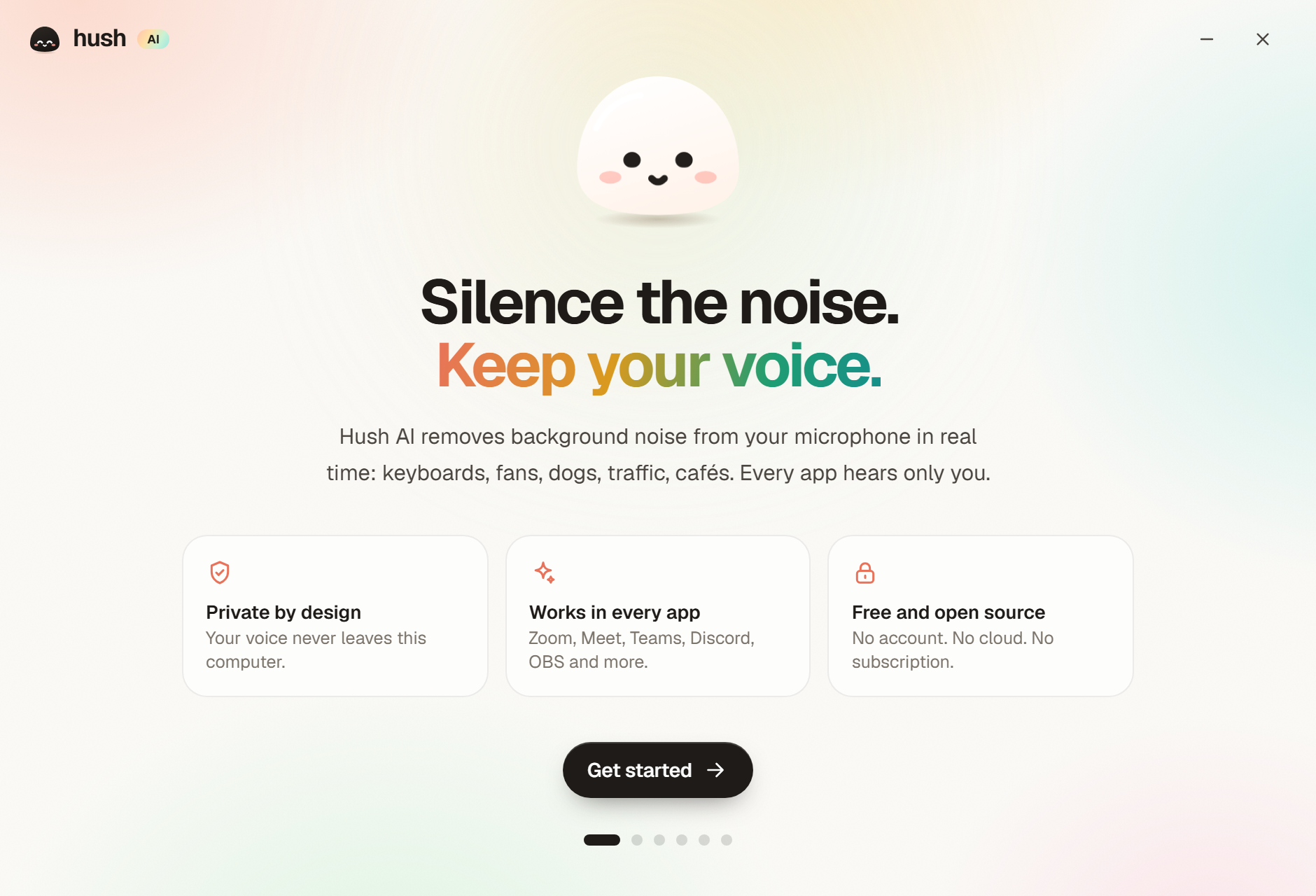
- Open Hush AI. It downloads the voice model and asks which microphone you use.
- Get the Hush AI Microphone.
- macOS: one click and your password. Hush installs its own small audio driver.
- Windows: install the free VB-CABLE by VB-Audio (Hush shows each step), then Hush renames it to Hush AI Microphone.
- Linux: nothing to do. Hush creates it on PipeWire or PulseAudio.
- Hear the difference. Record a few seconds and compare.
- Choose Hush AI Microphone in your apps. Hover an app in Hush to watch where:
| App | Where | |
|---|---|---|
 | Zoom | Settings › Audio › Microphone |
 | Google Meet | More options › Settings › Audio › Microphone |
 | Microsoft Teams | Settings › Devices › Microphone |
 | Slack | Preferences › Audio & video › Microphone |
 | Discord | User Settings › Voice & Video › Input Device |
 | Webex | Settings › Audio › Microphone |
 | OBS Studio | Settings › Audio › Mic/Auxiliary Audio |
Hush AI then lives in your tray (Windows, Linux) or menu bar (macOS). Click the mochi to turn noise cancellation on or off, change the microphone, or join your next meeting.
Studio: clean up a recording#
Open the Studio tab and drop a file: WAV, MP3, M4A/AAC, FLAC, OGG, or the sound of an MP4 or MOV. Or press Record yourself, pick the microphone (its level shows as you speak) and press Start recording. Hush records that microphone as it is, then cleans the recording with the engine you chose; your calls are not affected. Hush shows both waveforms, and lets you switch between the original and the clean version while it plays. Save clean WAV writes a 48 kHz file wherever you like. Long files are fine: Hush reads and writes them in pieces, so memory stays flat.
Talk: Live Translate both ways#
- On the Talk tab, press Add your key. Hush opens Google AI Studio; press Create API key and copy it. Back in Hush, the key is noticed, checked with Google and kept in Hush's settings folder.
- Choose I speak and They speak; ⇄ swaps them. Hush remembers them.
- Choose Both ways, My voice or Their voice, and turn on Live Translate. Hush asks once before it starts, since voices go to Google ("Don't ask again" skips it).
- Your voice: the call hears you in their language through Hush AI Microphone, with noise cancellation on or off.
- Their voice: you read them in your language as they speak. With Hush AI Speaker you can also hear the translation: Their voice (captions only), Voice-over (their voice turned down under the translation, like an interpreter; the default) or Translation.
Every call becomes a conversation on the Talk tab: a calendar meeting, or one stretch of talk, with both sides in both languages. Search, star, rename, filter by language, and export as Markdown, text or JSON. Conversations stay on your computer.
In a call, use the notch, the tray menu (Translate my voice, Translate their voice)
or Ctrl + Alt + T (⌘ ⌥ T on macOS). While it is on, voices go to Google's
gemini-3.5-live-translate-preview model; Google's terms and pricing apply to your key
(there is a free tier). The translation follows the speaker by a phrase or so.
Hush AI Speaker: hear them clearly#
In your meeting app, choose Hush AI Speaker as the speaker. Hush removes their keyboard, traffic and room noise (Light or Full) and plays them on your real speakers or headphones.
- macOS: Hush AI Speaker comes with Hush AI Microphone.
- Linux: Hush creates it in PulseAudio or PipeWire.
- Windows: the free VB-CABLE is already Hush AI Microphone, so Hush listens along to your speakers for translation with no setup. To also clean their voice, install a second cable (VB-CABLE A+B from VB-Audio) and choose CABLE-A Input as the meeting's speaker.
Meetings: Google Calendar without signing in#
Open the Meetings tab and press Connect Google Calendar:
- Open settings takes you to Google Calendar's settings.
- Under Settings for my calendars, pick your calendar, then Integrate calendar.
- Copy Secret address in iCal format.
Come back to Hush: it notices the address on the clipboard, checks it with Google, and shows the calendar's name and how many meetings it found. Press Connect. Then choose:
- how often Hush checks for changes (5, 15, 30 or 60 minutes);
- whether it turns noise cancellation on 1, 2 or 5 minutes before a call with a Meet, Zoom, Teams, Webex, Slack or Discord link, and off again afterwards;
- whether the tray widget pops up with a Join button.
The address stays in Hush's settings folder on your computer. Hush reads it straight from Google; there is no Hush server and no Google sign-in. Anyone with the address can read your calendar, so Google lets you reset it any time, and Remove makes Hush forget it.
Have a work and a personal calendar? Press + Add a calendar to follow up to 12. Each gets a colour, its own switch and its own status. A meeting that is in two calendars shows once, with one pop-up.
How it works#
flowchart LR
  mic["🎙️ Your microphone"] --> engine["Hush engine<br/>DeepFilterNet 3 or NVIDIA RE-USE<br/>Rust · your CPU"]
  engine --> vmic["Hush AI Microphone<br/>(virtual device)"]
  vmic --> apps["Zoom · Meet · Teams<br/>Slack · Discord · OBS · …"]
  file["📼 A recording"] --> studio["Studio<br/>same engine, off the audio path"] --> wav["Clean WAV"]
engine -.->|"Live Translate on"| gemini["Google Gemini<br/>Live Translate"] -.-> vmic- The engine (
crates/hush-core) runs either model one frame at a time on the CPU: NVIDIA's Mamba-based RE-USE in plain Rust with SIMD (20 ms frames), or DeepFilterNet 3 through its official Rust inference (10 ms frames). No Python, no GPU. - The app (
app/, Tauri 2) opens your microphone, feeds the engine on its own thread and writes the clean voice to the virtual microphone. The model never runs in the audio callback, so a slow frame can never glitch the device. - The virtual microphone (
virtual_mic/) is Hush's Core Audio plug-in on macOS, VB-CABLE on Windows (Hush's own driver is built and waits for Microsoft signing), and a PipeWire/PulseAudio virtual source on Linux.
Architecture has the details: threads, buffers, clock drift and the delay budget.
How it compares#
Hush's two engines against RNNoise, the open-source suppressor many apps use, on the VoiceBank-DEMAND test set (824 recordings, scored at 16 kHz). Higher is better; bold is the best.
| System | PESQ | STOI | SI-SDR | DNSMOS OVRL | CPU per audio second (1 thread) |
|---|---|---|---|---|---|
| No noise removal | 1.97 | 0.921 | 8.4 dB | 2.70 | – |
| RNNoise | 2.11 | 0.890 | 12.3 dB | 2.94 | 5% |
| Hush · DeepFilterNet 3 (default) | 3.10 | 0.945 | 19.0 dB | 3.18 | 7% |
| Hush · NVIDIA RE-USE, Light (16 kHz, 3 layers) | 2.61 | 0.934 | 18.0 dB | 3.16 | 79% |
| Hush · NVIDIA RE-USE, 8 layers | 2.77 | 0.938 | 18.5 dB | 3.23 | 146% |
- Hush leads every metric. DeepFilterNet 3 has the best PESQ, STOI and SI-SDR at about 7% of a core; RE-USE with 8 layers has the most natural sound by DNSMOS. CPU figures are rough: the laptop was doing other work.
- Why two engines: DeepFilterNet 3 is light and accurate, so it is the default. RE-USE needs a faster CPU, for people who want its sound.
- Both are reproduced faithfully. Hush's RE-USE matches NVIDIA's published PESQ (2.77 against 2.76) and NVIDIA's GPU output at 100+ dB. DeepFilterNet 3 runs the authors' own libDF code and model.
- Caveats: one dataset, objective metrics only, no listening test. The test speech is VCTK and the noise is DEMAND, which is close to DeepFilterNet 3's training data.
Comparison has the method, all metrics, results by noise level, delays and the script to repeat it. Performance has frame times, delay and long runs.
Roadmap#
- Noise cancellation: real time, on device, in every app
- Studio: clean up recordings on your computer
- Meetings: Google Calendar without signing in
- Voice translation: Live Translate (Preview), through Google Gemini
- Agent assist
- Speech analytics
- Voice security
- Hush's own signed Windows driver (lower delay than VB-CABLE)
Want to help? Pick an item and open an issue. See CONTRIBUTING.md.
Build from source#
You need Rust, Node.js 20+ and the Tauri prerequisites for your system.
git clone https://github.com/alshell7/hush-ai.git
cd hush-ai/app
npm install
npm run tauri dev
The app downloads the model on first start. To run the engine tests, see Build and release.
Use the engine in your own project#
use hush_core::{Config, Denoiser};

let mut denoiser = Denoiser::with_config(
    "models/model.safetensors",
    Config { layers: 3, sample_rate: 16_000, look_ahead: 0 },
)?;
let mut clean = Vec::new();
denoiser.process_into(&noisy_chunk, &mut clean)?; // any chunk size, mono f32
hush_core::DeepFilter offers DeepFilterNet 3 behind the same interface, and
hush_core::live::LiveWorker adds lock-free device queues, rate conversion, clock-drift
control and meters for either. More.
FAQ#
Is it really free?
Yes. No account, no trial, no minute limits. The code is Apache-2.0.
Can I use it at work?
Yes. Hush AI and its default engine, DeepFilterNet 3, are open source (Apache-2.0 and MIT). The optional NVIDIA engine has its own license terms, which Hush shows before it downloads that model. See License.
Does my voice leave my computer?
Not for noise cancellation or Studio: they run on your computer. Hush connects to the internet to download a model once, to check GitHub for updates (you can turn this off), to read your calendar's iCal address if you connect one, and, only while Live Translate is on, to send your voice to Google for translation.
Is the calendar address safe in Hush?
It is stored only in Hush's settings folder on your computer and never written to logs. Hush never sees your Google account. Like any secret link, anyone who has it can read the calendar, so reset it in Google Calendar if it leaks; Hush shows how to connect again.
Why VB-CABLE on Windows?
Windows loads audio drivers only with Microsoft's signature. Hush's own driver is built and tested, and waits for that signature. Until then, VB-CABLE (free, signed, by VB-Audio) carries the audio. Its license does not allow Hush to include it, so you install it once yourself. Hush renames it so apps show Hush AI Microphone.
How do I uninstall?
Settings › Hush AI Microphone › Remove (macOS) or Restore VB-CABLE names (Windows), then uninstall the app like any other. On Linux, the virtual microphone disappears when Hush quits.
More in the user guide.
Documentation#
All docs are also on the website at alshell7.github.io/hush-ai/docs.
| Page | For |
|---|---|
| User guide | Install, set up, use in apps, Studio, Meetings, fix problems |
| Architecture | How audio flows through Hush |
| Performance | CPU time, delay, long runs |
| Accuracy | Comparison with NVIDIA's GPU reference |
| Comparison | Hush's engines vs RNNoise, measured |
| Virtual microphone | The drivers for macOS and Windows |
| Build and release | Develop, test, release |
Credits#
- DeepFilterNet by Hendrik Schröter: the DeepFilterNet 3 model and its Rust inference (MIT or Apache-2.0).
- NVIDIA Real-time RE-USE: the speech enhancement model and weights.
- re-use-rs by altunenes: the Rust port this engine grew from (MIT or Apache-2.0).
- Microsoft's SysVAD sample (MS-PL) for the Windows driver, and Apple's Audio Server Plug-in design for macOS.
- VB-CABLE by VB-Audio, the free virtual cable Hush uses on Windows.
- Symphonia for reading audio files, rrule for repeating calendar events, and tungstenite for the Gemini Live connection.
- Google Gemini 3.5 Live Translate, the cloud model behind Live Translate (with your own key).
- App logos from gilbarbara/logos and Simple Icons (CC0). The names and logos belong to their owners.
- Tauri, HeroUI, Motion and the Geist font.
Hush AI is an independent open-source project. It is not affiliated with or endorsed by NVIDIA, the DeepFilterNet authors, VB-Audio, Krisp, Adobe, Google or any app named here.
License#
- Hush AI (app, engine, drivers): Apache-2.0.
- DeepFilterNet 3 model and inference: MIT or Apache-2.0, by Hendrik Schröter.
- NVIDIA Real-time RE-USE weights: the NVIDIA One-Way Noncommercial License, for non-commercial research and educational use; NVIDIA and its affiliates may use them commercially. Hush downloads them only after you agree to those terms.
Other third-party parts: see NOTICE.
Something unclear or out of date? Tell us or edit this page.